Apple Music Promote: Match Each Asset to a Real Campaign Placement
Apple Music promotional assets become useful when each file has a specific job. Before generating graphics, decide which release or verified achievement the message concerns, where it will appear, which language it needs and where its call to action should take a listener. Six deliberate placements are easier to review than a folder of every available variation with no destination attached.
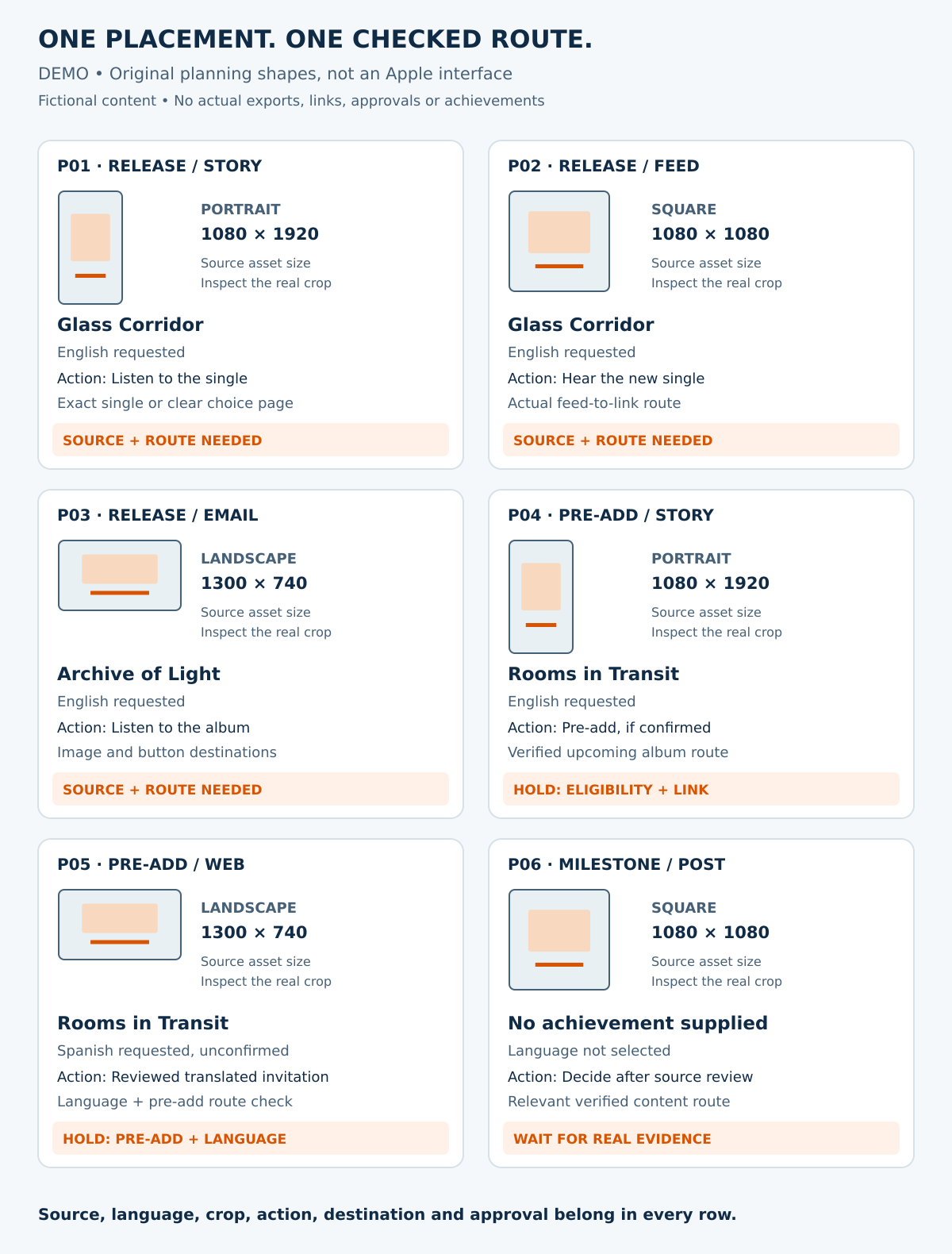
This guide turns Apple Music for Artists Promote into a small placement workflow. The downloadable matrix contains six fictional planning rows and a reusable blank form. An original storyboard illustrates their different shapes and messages. Neither file is an Apple interface, a real campaign or evidence of an achieved Milestone. Account generation, language availability and listener routes were not tested for this article.
Choose a message that the release can support
Start with the truth of the announcement. A release message tells people that a particular recording is available. A pre-add message asks them to take a supported action before the release. A Milestone message reports an achievement that exists in the artist's actual account. These messages need different evidence even when they use similar artwork.
Write one sentence before choosing a template. For example, “Glass Corridor by Elian Vale is available on Apple Music” is the fictional release statement in our matrix. The corresponding pre-add row concerns the fictional album “Rooms in Transit,” but remains on hold until its actual eligibility and destination could be checked. The Milestone row has no invented count, playlist placement or chart position.
Apple's Promote documentation covers releases, pre-adds and Milestones, with static and video assets. Use the content actually offered for the selected artist. A planned release date in your own calendar does not prove that the release is available in Promote or that its pre-add is ready.
For pre-add preparation, use the separate Apple Music pre-add timeline. If eligibility is unresolved, keep designing the campaign's general announcement while leaving the pre-add-specific invitation unapproved. A useful planning record should show which message is ready, rather than making every task wait for an optional feature.
Check the artist and the operator's access
The person generating assets needs the correct artist selected and the appropriate account role. Apple currently identifies Admin and Analyst as roles that can use Promote. Confirm both before treating a missing option as a technical fault. Someone who can prepare a campaign caption may still need a different team member to perform the account action.
If access has not been established, follow the artist-page claim and image checklist. Apple's claim guide describes evidence of the applicant's identity or relationship to the artist. A pending claim is not an available production account, and a designer should not need another person's password to prepare the matrix.
Name three responsibilities even if one person performs all of them: the operator selects the content and exports the asset; the reviewer checks the message, crop and link; the publisher places the approved version in the correct channel. This prevents an export from being mistaken for permission to publish it.
Record the selected artist and release beside the filename. Teams handling several artists can otherwise produce an accurate card for the wrong campaign. The same identity check should happen again before sharing from a social account.
Map the placement before selecting its shape
Apple lists three web export sizes: portrait at 1080 × 1920, landscape at 1300 × 740 and square at 1080 × 1080. These are source asset sizes, not a promise that every receiving platform will display the whole image or accept the same video file. Inspect the actual placement's preview before scheduling it.
A portrait is a sensible starting point for a vertical story. A square may suit a feed tile. A landscape can be useful in an email or website module. Those are planning choices in our example, not universal specifications for those channels. A website slot might require a different layout; an email client may shrink text more than expected.
The six DEMO placements deliberately have different jobs:
| Placement | Message and starting shape | What must be resolved |
|---|---|---|
| P01: vertical story | Released single; portrait | Link control reaches the exact single |
| P02: feed tile | Same single; square | Caption and available link route agree |
| P03: release email | Available album; landscape | Image and text button share the approved destination |
| P04: pre-add story | Upcoming album; portrait | Actual pre-add eligibility and route |
| P05: second-language website module | Upcoming album; landscape | Supported language, reviewed copy and pre-add route |
| P06: achievement post | Verified Milestone; square | Actual achievement evidence before any claim |
The full worksheet adds real-source evidence, language, crop notes, call to action, destination and approval to every row. Its real-source cells contain explicit evidence requests, not fabricated screenshots or live URLs. Replace those requests with your own records before approving a row.
Treat language as a content decision
Promote's current documentation describes seven supported languages. It does not list them in that guide. Inspect the choices available in the actual tool; do not promise a particular translation solely because your campaign needs it. Our second-language row requests Spanish, with availability and translation review left unresolved.
Check the graphic, caption, destination and any date wording together. A translated image leading to an unrelated language page is still a confusing journey. The destination does not have to reproduce every word of the post, but it should make the promised release and action recognizable.
Assign a reviewer who can assess the intended language. Ask them to check the meaning of the invitation, artist and release spelling, timing and whether a generated achievement statement remains accurate. A language selector does not establish that an accompanying caption has been reviewed.
If the requested language is unavailable in the tool, record the limitation and choose an authorized alternative for that placement. Do not label an improvised translation as an official generated version. Keep the alternative copy and reviewer decision with the row so the publisher knows what was approved.
Generate only the variants the matrix requires
On the web, Apple describes Cover Art, Artist Image and Blur template choices. Choose one that supports the message, then generate the required language and size variants. A template using an artist photograph deserves a check of the underlying public image; a cover-based template needs the correct release configuration and artwork.
Keep the first export set small. Generate the sizes associated with approved placements, then examine the files before requesting more variants. The aim is to catch a wrong release, awkward crop or unsupported message while the number of affected files is manageable.
Use a short identifier such as P01_GlassCorridor_EN_portrait_v01 in your working record. This is an organizational example, not a required Apple filename. Preserve the original export and record which file is approved. If a file is changed outside the generation tool, describe that change so a reviewer is not unknowingly approving a different version.
Inspect video assets as video. Watch the opening, the full sequence and the end state, and check any accompanying sound or text that is actually present. A clear first frame does not prove that the final claim or destination is correct. Record duration and file properties from the export rather than guessing them from a static preview.
Check the claim before polishing the card
A Milestone needs an identifiable source. Record the wording shown in the account, the relevant content, the date or period where supplied and the evidence location available to the authorized team. Preserve the scope: a playlist addition is not a chart peak, and a recording-level achievement is not automatically an artist-wide total.
Our P06 row therefore remains WAIT_EVIDENCE. It shows the layout reserved for a future, verified achievement without supplying a number. If no relevant Milestone exists, remove that placement or replace it with a truthful release message. Do not fill the empty box with an aspirational result.
Review the prepared sharing text as well as the graphic. Make sure it refers to the intended artist and content, includes an accurate action and avoids changing the scope of the underlying achievement. An enthusiastic caption can introduce an unsupported claim even when the generated image is accurate.
The approval question is concrete: “Can this exact wording be traced to the recorded source?” If the answer is no, the next task is clarification or revision, not a more attractive export.
Test the destination as a listener route
Apple describes custom links powered by Linkfire that can lead to Apple Music and other music services. Record the actual generated link and inspect its behavior. A short address alone does not reveal whether the next screen opens the intended song, an album, a service-choice page or an unexpected destination.
Keep the shared link and the final destination in separate fields. Open the route from the placement you intend to use, on the relevant phone and desktop surfaces. Record the app or browser, sign-in state, date and observed result. If a step requires access you do not have, mark that step NOT_RUN while retaining the public checks you completed.
The call to action should match the observed next step. “Listen to Glass Corridor” should make that recording straightforward to find. “Choose where to listen” is clearer when the next page presents several services. A pre-add invitation needs the appropriate upcoming release and action; a generic artist page is not evidence of that path.
Test the clickable element, not just a URL written in a planning note. An image, caption link, story link control and email button can point to different places. For an email, inspect both the image link and the text button if both are clickable. The worksheet gives each placement its own result for this reason.
Review the published placement and retain the decision
Before publication, check text legibility at the intended viewing size, visible artwork, crop, link controls and any platform overlays. Keep important information away from areas obscured in the actual preview. The storyboard's rectangles are teaching shapes; they do not define official safe areas for any social app.
After publication, open the post, email or website module and check the route again. Confirm the correct account, approved version and current message. A scheduled pre-add post may need a release-day review even if its original link still opens successfully. Availability and wording are separate checks.
Store the publication URL or other retrievable placement reference with the approved file, reviewer, actual check date and unresolved limitations. If a correction is needed, record what changed and inspect the affected placement again. Do not overwrite an earlier result with a pass that hides the issue.
For a wider release narrative, use the music release content series. For additional distribution, compare music platform promotion or music release services against the work you need. Promote access, generated creative and catalog services have separate scopes; clarify the selected service's conditions with technical support.
Complete the six placement rows before building a large export folder. The useful handoff is an approved message, a named file and a checked route for every real placement.
