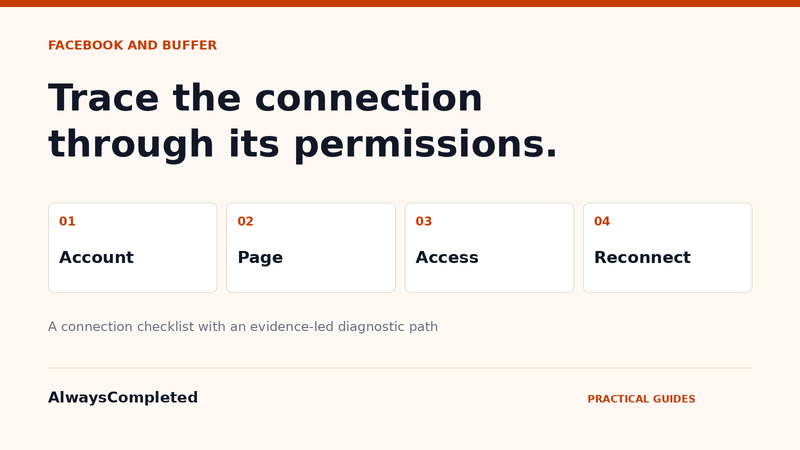
Facebook Page Not Connecting to Buffer: A Permissions Checklist
If a Facebook Page is missing when you try to connect it to Buffer, establish three things first: the exact Page you intend to connect, the personal Facebook profile authorising the connection and the permissions that profile holds. Then check the integration itself. Repeating the same connection attempt without recording those facts rarely tells the team which part needs attention.
Use the eight-check decision tree below to isolate the blocker. It separates Page access, business-portfolio access, integration permissions and a channel that belongs to another Buffer organisation. The downloadable log records what is visible, what is expected, who can resolve the difference and what should happen next.
This is a documentary troubleshooting process based on Buffer's public guidance checked on 26 November 2026. No signed-in account, connection, permission change or test post was performed. The two worked examples are DEMO scenarios, and their actual results remain NOT_RUN.
Before the checks: write down the exact failure
Record the Page's public URL, the Buffer organisation you intend to use, the connecting person's name or internal reference and the exact error text. Distinguish “the Page is not listed” from “the Page is listed but unavailable” and from “the channel connected but a post failed.” Those observations point to different investigations.
Add the date, browser/app context and the step where the problem appeared. A screenshot can be useful when captured by the authorised account holder, but it should show the relevant condition without passwords, recovery codes or unrelated private information. This guide's worksheet does not contain or request credentials.
Keep the evidence brief enough to compare between attempts. If one attempt used a different profile or organisation, record the change. Otherwise, a later success or error can be attributed to the wrong action. Avoid making several permission changes at once simply to see whether something starts working.
Check 1: is the target actually a Facebook Page?
Open the intended destination and identify its object type. A business-looking name or a professional profile does not by itself make the object a Page. Save the exact URL so the team does not troubleshoot a similarly named account.
Buffer's Facebook connection guide says personal profiles cannot be connected through this Page connection route. It authenticates a Page through a personal profile with the required Page role. The personal profile is the authorising identity, not the publishing destination being added.
If the intended object is not a Page, stop this Page checklist and clarify the supported route for that object. Do not create or replace a business presence merely to make it fit the checklist. The decision about which account the organisation should use belongs to its owner.
Check 2: is the correct personal profile authorising?
Before continuing an authorisation prompt, compare the profile it names with the person who should connect the Page. A browser can already be signed into a different personal profile. A familiar avatar is not a reliable substitute for checking the identity shown.
Buffer's connection instructions recommend signing into the personal profile with the relevant Page role first. They also distinguish that from acting as the Page itself. If the wrong identity is present, have the appropriate person establish their own session; do not ask them to send you a password.
Record the result as “expected profile observed” or “wrong profile observed,” with the owner of the next action. A profile being correct does not yet establish that its Page or portfolio permissions are sufficient. Move to the next check instead of treating identity as the whole solution.
Check 3: does that person have the required Page access?
Inspect the access for the specific Page and person. Buffer's current permissions troubleshooting guide calls for Admin access with Full Control for the person connecting or refreshing the Page. Record the actual access label the account holder observes and compare it with the current guide.
If the person cannot inspect or change that access, identify the existing authorised owner. The next action is an access review by that owner, not repeated guesses inside the connection dialog. Do not confuse a person's ability to perform one everyday Page task with permission to establish the integration.
This requirement concerns the connecting person and this integration workflow. It is not a recommendation to give every employee Full Control. Other team members should have the access appropriate to their actual responsibilities, with the organisation deciding who maintains the connection.
Check 4: is a business portfolio involved?
Determine whether the Page is associated with a business portfolio and select the correct portfolio before reviewing access. Buffer says that relevant permissions may need checking both on the Page and in the portfolio. Its guide describes checking the person and the Page asset within that portfolio.
Record the portfolio identity alongside the Page identity. Someone may be looking at a valid portfolio that does not contain the intended Page. An empty or inaccessible view should be recorded as such; it does not prove that the Page has no portfolio relationship.
If a portfolio owner must resolve the issue, give them the precise Page, person and observed limitation. “Please confirm this person's access to this Page in this portfolio for the Buffer connection” is more actionable than “Facebook permissions are broken.” Keep their real confirmation in the log before repeating the affected step.
Check 5: are Buffer's integration permissions complete?
Review Buffer in the authorising profile's Business Integrations, following the current official guide. Buffer says missing integration permissions can prevent it from finding Pages, and its documented connection flow asks for all required permissions and all Pages, including those not being connected to Buffer.
This is a scope decision for the authorised owner. If that requested scope is incompatible with the organisation's access policy, pause and ask Buffer about a supported arrangement; do not silently broaden access or claim that a restricted permission selection will work. Record the specific unresolved scope rather than marking the connection ready.
Keep integration scope separate from which Page is finally added as a Buffer channel. The fact that an authorisation screen covers several Pages does not mean the team wants to connect each one for publishing. Verify the intended destination again at the channel-selection step.
Check 6: is the channel unavailable in this organisation?
A listed channel marked unavailable needs a different branch from a missing Page. Buffer's unavailable-channel guide says a social channel can belong to only one Buffer organisation at a time. Investigate an earlier organisation or an existing team member's setup before treating this as another Facebook role problem.
Coordinate any transfer with the current owner. The same guide warns that removing a channel from a Buffer organisation deletes its queued posts and analytics there. Save the material needed and agree the move before disconnecting it. Do not use removal as an exploratory troubleshooting step.
If the owner of the previous connection is unknown, use Buffer's support route with the Page link and relevant evidence. A screenshot or an ownership investigation may be needed; this article cannot establish your authority over a channel. Keep the unresolved ownership question visible in the record.
Check 7: is a coordinated reauthorisation appropriate?
If identity, access and scope have been checked but the connection still fails, Buffer's troubleshooting guide describes reauthorising through Business Integrations and reconnecting. Follow the current official procedure with the authorised owner. Distinguish removing the integration in Facebook from removing a channel inside a Buffer organisation; they are separate actions with different consequences.
Before starting, identify existing work that relies on the connection and who will verify it afterward. Record the baseline error, intended procedure and the person responsible for checking the result. That preparation makes the attempt reviewable and avoids leaving another team member to discover an unverified connection later.
After the attempt, write what changed and repeat the relevant observation. If an explicit error names a different condition, preserve its exact wording and consult the matching current Buffer guidance. Do not keep changing unrelated privacy or account settings simply because a generic connection attempt failed.
Check 8: did the intended Page connect to the intended place?
Verify the Page identity in the intended Buffer organisation. Compare the public Page URL, channel name and selected destination with the original log. A successful-looking authorisation screen does not establish that the correct channel was added.
Then verify only the work you are authorised to perform. Reviewing channel details and an approved draft may be enough to establish the next step. If the team needs an actual publishing test, obtain approval for the exact content and action, then record the resulting public object separately. This checklist does not authorise an unplanned test post.
Use a narrow completion statement: “The intended Page is visible in the intended organisation; the connection was checked at this time; publishing remains untested,” if that is the evidence you have. Do not describe the entire workflow as tested when only the connection step was observed.
Follow the two DEMO branches
DEMO A: the Page is missing
The fictional team at Cedar Stage sees no Page in the connection selection. It confirms the target is a Page and that the correct personal profile is shown. The hypothetical next observation is that the expected access is missing in the associated portfolio.
The tree stops at Check 4 and assigns the portfolio owner to inspect that specific relationship. It does not invent a successful permission grant or continue with reauthorisation as though access were already corrected. The next attempt remains pending until the real owner provides evidence.
DEMO B: the wrong profile is authorising
In the second fictional scenario, the connection dialog names a profile different from the intended Page administrator. The process stops at Check 2. The appropriate person establishes their own session and repeats the identity check before the remaining checks proceed.
The example does not need a new Page, a shared password or wider permissions for the wrong profile. It needs the intended authorised identity. Actual connection and publishing results remain blank in the downloadable log.
Hand over a precise support question
If the issue remains unresolved, summarise the target Page, intended Buffer organisation, observed error, completed checks and specific blocker. Include the time and relevant evidence. A support message should make it possible to reproduce the condition without exposing credentials or unrelated account data.
The social media client onboarding checklist can hold the broader access owner and campaign scope. The approval workflow can record an authorised connection change or publishing test. Keep those decisions separate from the technical result of the attempt.
AlwaysCompleted Facebook promotion services concern the destinations and activities described in their listings. They do not establish Buffer access or replace Meta/Buffer permission administration. If a separate order is involved, use its exact destination and conditions; the FAQ explains the order workflow, and technical support can clarify an order-specific question.
