Discord Invite Link Not Working? Follow the Error to the Right Fix
When a Discord invite link is not working, start with the exact message and the kind of link being opened. An expired invitation, paused server invitations, a direct event link and a restriction on one account require different responses. Replacing every link immediately can create extra broken placements without resolving the cause.
Record where the link appeared, what happened when it was opened and whether the tester was already a server member. Then give the next check to the person who can actually perform it: the invited person, the placement editor or an authorized server administrator.
The decision tree and log below are original working tools. Examples are DEMO scenarios with placeholders, not tests of real servers. Discord's public documentation was checked on 26 November 2026. No invitation, account restriction or private event was tested for this article.
Capture the error without collecting account secrets
Ask for a short description or a cropped image of the visible error, the placement where the visitor found the link, the approximate time and the relevant browser or app context. Record whether the problem happened before joining, while joining or after the person had entered the server.
You do not need a password, authentication token, recovery code or an export of someone's messages. A public campaign link may belong in the working log; a private invite should remain in the authorized team's record. For shared troubleshooting, use a placement reference instead of spreading the invite more widely.
Keep observation and interpretation in separate fields. “The page says invitations are paused” is an observation. “The campaign link expired” is a diagnosis that the observation does not support. This distinction prevents a support conversation from becoming an argument about a cause nobody has checked.
Also record the scope. One existing administrator successfully opening a link does not reproduce a newcomer's route. One visitor failing does not establish that every visitor fails. The useful question is which combination of link, membership and intended action produced the reported result.
Identify the link before changing it
Classify the actual destination into one of three working categories:
| Link category | Intended job | First question to resolve |
|---|---|---|
| Server invitation | Let an eligible person join the server | Is the invitation valid and are invitations currently accepted? |
| Event Server Invite | Invite someone to the server around a specific event | Does the invitation and event context fit an outside visitor? |
| Direct event link | Open an event for a person with the necessary access | Is this person already a member and permitted to see the event? |
Discord's Scheduled Events documentation distinguishes Event Server Invites from Direct event links. A direct link does not work as a membership invitation for someone outside the server. Event links also depend on event visibility; events in private channels use direct links rather than generating Event Server Invites.
If the promotion is for a public listening event, ask the event owner which route was intended. Do not make a private event public just to satisfy a campaign link. The owner should choose an appropriate invitation and access policy, then the placement editor can publish the approved route.
For a shortened or redirected link, compare the final destination with the approved destination in the campaign brief. A correct Discord invite cannot repair an old shortener destination by itself. Record both the published placement and the final destination internally, including the point where they differ.
Check the exact code and the invitation settings
Discord's Invalid Invite Links guide distinguishes unknown or expired invitations from invalid codes. Invite codes are case-sensitive. Compare the full published link with the owner's approved copy; do not retype or casually normalize its characters.
Inspect the placement itself. A copied caption might include trailing punctuation. A line break might make only part of the link clickable. A website button might display the right label while linking to an old destination. Test the control a visitor actually uses, not only the clean URL stored in the brief.
Have an authorized owner inspect the invitation's current settings. Discord's Invites 101 documents duration and usage settings, and notes that a deleted invitation cannot be recreated with the same code. Avoid deleting an invitation as an exploratory troubleshooting step.
If the owner confirms that the invitation expired, was removed or exhausted its configured use allowance, create an appropriate replacement through the normal authorized controls. Choose settings for the intended distribution period, then verify the new route before changing published placements. Record the old and new references so later reports can be traced to the correct version.
A fresh invitation is not a universal diagnosis. If both the approved original and a newly created invitation lead to the same pause or account restriction message, stop making more links. Follow the relevant branch instead.
Ask whether invitations are paused
Discord's Pause Invites FAQ explains that invitations can be paused without revoking the underlying links. A person with Manage Server permission can inspect the state under Server Settings > Invites and re-enable invitations when appropriate. People who previously tried to join are not automatically notified when invitations resume.
Treat a deliberate pause as an operational decision. The server might be responding to disruption or preparing for new arrivals. Tell the campaign owner that the destination is temporarily unavailable and ask the authorized server team to determine the reopening time. Do not remove moderation protections because a promotion is scheduled.
In the log, preserve the existing link reference and write “waiting for owner decision” if that is the actual state. If the owner resumes invitations, retest the approved link and update the campaign's availability notice if needed. A replacement link may be unnecessary because the pause did not revoke the original.
For example, a DEMO campaign has the same invitation on a profile and an event page. Both show a pause message. The next action is to confirm the server-wide pause with its owner. Editing two placements to two new codes before that conversation would add work without addressing the observed condition.
Separate account restrictions from broken links
The Invalid Invite Links guide also covers membership-limit and server-ban errors. Use the current message and the person's account context to identify the branch; subscription and account conditions can affect the applicable limit. The invited person should make any decision about leaving an existing server themselves.
If a ban is indicated, contact the server's administrators through an appropriate existing route. A new invitation is not permission to re-enter, and changing accounts or network identity is not a legitimate repair procedure. The administrator needs to decide whether access should be restored.
Write the minimum useful result in the campaign log: “account-specific restriction reported; referred to server administrator.” Do not turn the general placement record into a list of personal disciplinary details. If the error remains unexplained after the owner and invited person have checked their respective sides, use Discord's official support route linked from its help center.
Other observations may fall outside a simple invite-code diagnosis. If a page never loads or an app handoff fails before Discord shows a result, record that stage accurately. Do not label it expired without evidence. The affected person and support team can investigate the relevant client or service issue while the placement owner preserves the approved destination.
Test event access with the intended audience
A member with broad access can open an event that an ordinary member cannot. A non-member can encounter an event URL that was never meant to invite them. These cases are different from a malformed code, even when the person describes all of them as a broken link.
For an event-related report, record three things: whether the tester is a member, which audience the event is intended for and whether the tester can see the relevant channel. The event owner should compare these observations with the intended access. Do not request screenshots of unrelated channels or a full role inventory when a narrow confirmation will do.
If the audience is outside the server, the owner must provide an appropriate entry route. If the event is for a restricted group, the invitation message should say who it is for. A public caption promising unrestricted attendance while linking to a restricted event is a communication problem even if the event's permissions work as designed.
A DEMO case illustrates the distinction: a partner's post links directly to a members-only listening session. The administrator can open it; an outside visitor cannot. The fix is to agree on the intended audience and approved route, then update that placement. It is not evidence that Discord needs another random invitation code.
Use a small decision tree
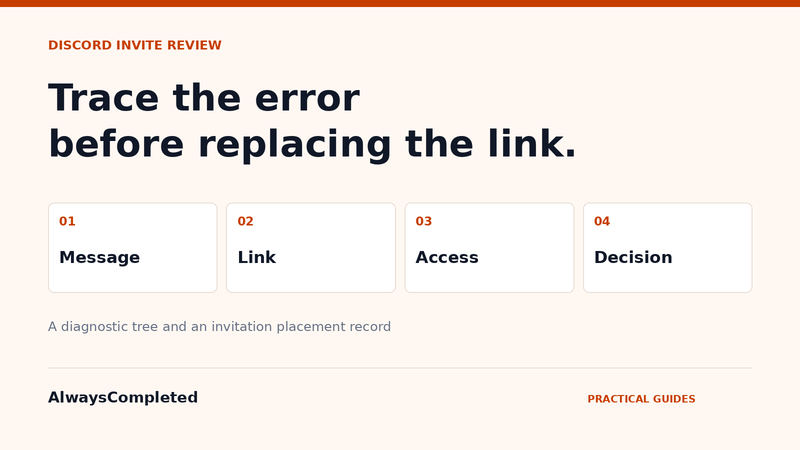
The downloadable tree follows this order:
- Can you identify the actual link and visible result? If not, capture those first.
- Is it a direct event link? Check membership and event/channel access with the owner.
- Does the message indicate paused invitations? Ask the authorized server team about the pause.
- Does it indicate a membership limit or ban? Follow the account or administrator route.
- Does it indicate an unknown, expired or invalid invitation? Compare the exact code and inspect current invitation settings.
- Was a change approved and made? Test the relevant audience route, then recheck each changed placement.
These branches are prompts for evidence, not an automated classifier. An unclear message can remain unresolved. Record the owner and next check instead of forcing every report into the expired-link category.
Repair published placements and verify the result
Once a replacement or restoration is approved, use the placement log to find every occurrence the team controls. Typical locations include the website, social profile, pinned message, event page, scheduled post and a partner brief. Record which ones can be edited and which require a follow-up with their owner.
Update the actual hyperlink destination as well as any visible link text. For a placement that cannot be edited, decide whether an authorized correction or a new announcement is needed. Avoid claiming that an old external placement has been repaired when you have only sent a request.
Retest from the changed placement with a suitable authorized tester. Record the time, account context in non-identifying terms, final destination and action completed. “Invite screen opens” and “eligible newcomer joined” are separate observations. Only claim the step you actually observed.
If the link belongs to an existing AlwaysCompleted order, send technical support the order ID, the relevant destination and the visible error. Coordinate the change before replacing an active order's destination. The Discord service page distinguishes membership, reactions, messages and boost packages; none of those category names guarantees that a particular private event route is supported.
The landing-page checklist can help review a website placement before launch. For this diagnosis, the useful completion record is narrower: the cause supported by evidence, the action taken by the correct owner and the exact route that passed its follow-up check.
