YouTube Channel Homepage Audit: Help New Visitors Choose What to Watch
A useful YouTube channel homepage explains who the channel helps, offers a relevant first video and makes the next viewing choice understandable. Audit those tasks before rearranging every section or commissioning a new banner. A visitor should be able to choose something useful without first learning your internal content categories.
YouTube's channel-layout guide supports a Home tab, a trailer for people who have not subscribed, a featured video for returning subscribers and configurable sections. Those tools provide options; they do not establish that a particular arrangement will increase subscriptions.
Use this article with the 15-check worksheet and two original schematics: one for an expert teaching a skill, the other for a small product brand. They are fictional editorial layouts, not screenshots of YouTube or audits of real channels.
Write the channel promise before choosing the first video
Finish this sentence: “This channel helps [specific viewer] do [useful task] through [recognizable kind of video].” Avoid promises that could describe any channel in the category.
For a fictional spreadsheet educator, “Learn useful things about spreadsheets” is vague. “Build practical project trackers without needing advanced spreadsheet knowledge” gives a beginner a reason to inspect the lessons. For a fictional modular desk-organizer brand, “Everything about our products” can become “Choose, assemble and adapt a desk-organizer setup for your space.”
Neither promise needs a result guarantee. The expert does not promise to double productivity; the brand does not claim every desk will become clutter-free. The promise identifies the task the videos actually support.
Now compare the banner, channel description and first visible content against that sentence. If the promise concerns beginner project tracking but the first prominent video is an unrelated conference recording, the visitor has to reconcile two different expectations. The recording can remain available while a more relevant starting point becomes easier to find.
Treat the banner as orientation, not the only place where essential instructions live. YouTube notes that the same banner displays differently and can be cropped across devices in its branding guidance. Keep the useful starting instruction in content titles and descriptions as well.
Separate visitor needs from YouTube's display rules
“New visitor,” “unsubscribed viewer,” “returning viewer” and “returning subscriber” are not interchangeable labels.
Your editorial task is to help an unfamiliar visitor understand the channel and an existing viewer find something relevant next. YouTube's layout settings use more specific rules: the trailer targets people who have not subscribed, while the featured Spotlight video targets returning subscribers. The official guide also says that after someone watches the trailer or featured video, it will not be shown to that viewer again.
That matters during an audit. Reopening the channel repeatedly in the same account may produce a different experience after the selected video has been watched. It does not automatically mean the configuration failed.
Record the viewing context: signed out or signed in, subscription state when known, whether the selected feature was already watched, device and date. An incognito window is a useful separate context, but it is not a laboratory reconstruction of every first-time YouTube viewer.
Choose a trailer that demonstrates the promise
The first video should make the channel's subject, audience and value easy to recognize. It can be a purpose-built introduction or a representative lesson that already does this well. Avoid selecting a video only because it has the largest historical view count.
For the fictional educator, a trailer script could say:
“If you need a project tracker and formulas still feel unfamiliar, start here. On this channel we build small, usable sheets one step at a time. This example begins with tasks, owners and due dates, then shows how the pieces fit together. Start with the project-tracker playlist. When you have that working, the next lessons explain common formula and maintenance problems.”
The script identifies the learner, previews a real task and points toward a coherent route. It should be supported by actual lesson footage, not a montage that promises tools the channel does not teach.
For the fictional brand, the introductory script can answer a different need:
“Trying to choose a desk-organizer setup? These videos show the modules, the measurements to check and how the parts go together. Begin with the setup-selection guide if you are still deciding. If you already own the system, the assembly and adjustment playlist is the useful starting point. Each guide identifies the product version it covers.”
The brand introduction gives prospective buyers and existing owners different routes. It does not need to interrupt every helpful instruction with a purchase request.
Give returning subscribers a current reason to watch
Choose the featured video around a timely, relevant continuation. For the educator, that could be a new lesson improving the project tracker. For the brand, it could be a guide for a new module or a clarified assembly step. Use content you can accurately describe, and replace a feature when it no longer serves the intended task.
Do not make the returning route depend on the visitor remembering an old introduction. A title such as “Add a weekly review to your project tracker” explains its purpose independently. “The next one is finally here” requires context that a returning subscriber may not have.
Write a review date beside the chosen feature in your planning record. “Review after the current series finishes” is more actionable than leaving a launch announcement featured indefinitely.
Arrange sections around decisions, not department names
Use each section to answer a different question. The current layout guide permits up to 12 custom sections and includes playlist and video options. “For you” is personalized from the individual viewer's interests and viewing history; it is not a fixed lineup every visitor will see. Confirm the current section controls in your account.
The number of available sections is a capacity, not a target. Start with the smallest arrangement that makes the main tasks clear. Add a section when it provides a distinct route, rather than because more rows are available.
Expert-channel schematic
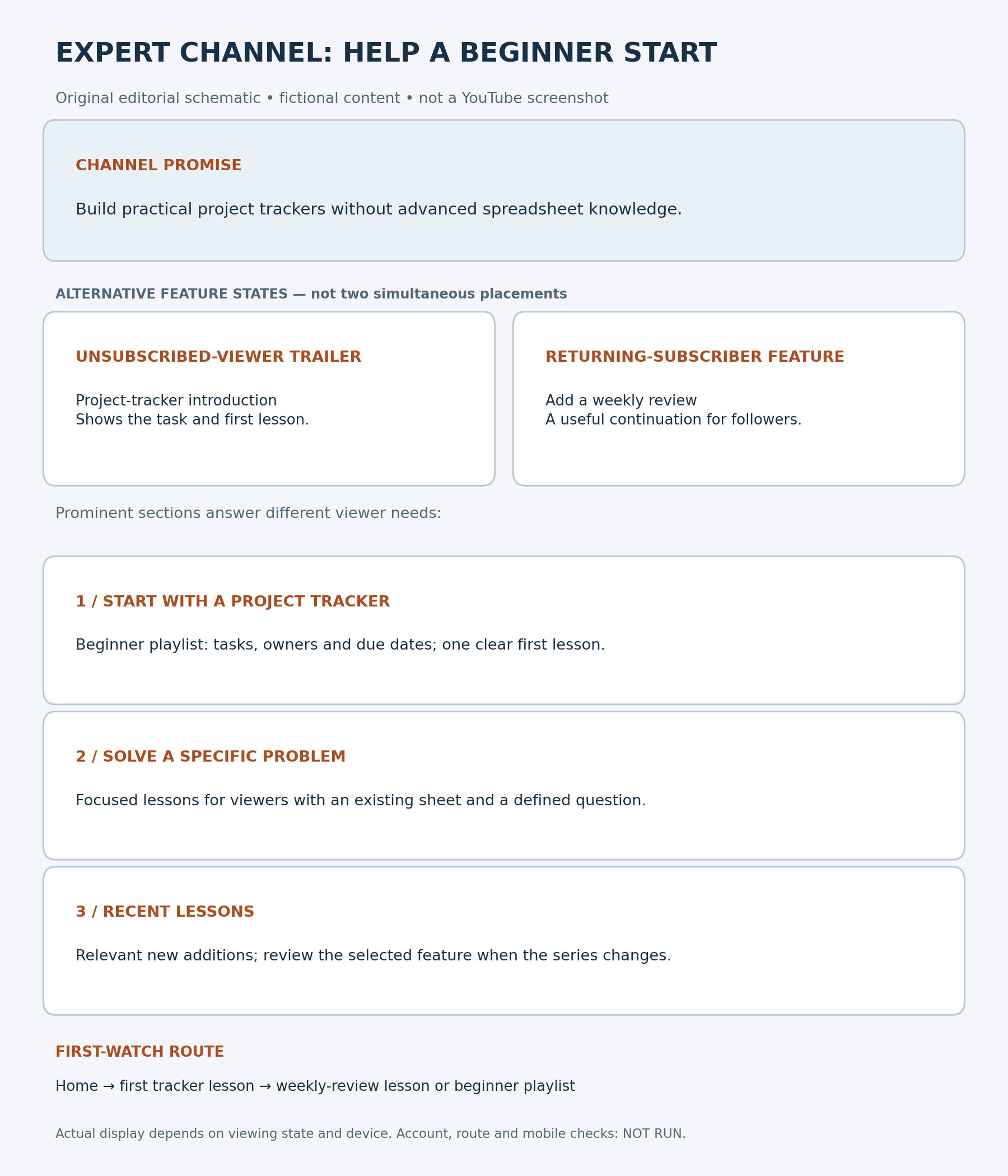
The expert-channel concept uses these editorial roles:
- Start with a project tracker: a beginner sequence with an obvious first lesson.
- Solve a specific problem: focused tutorials for viewers who already have a sheet and need help.
- Recent lessons: current additions for people following the channel's work.
The educational progression is more useful than separating everything into “Uploads,” “More uploads” and “Other videos.” If a lesson belongs in multiple useful playlists, check that the overlap helps the visitor instead of presenting the same few videos repeatedly at the top.
Small-brand schematic
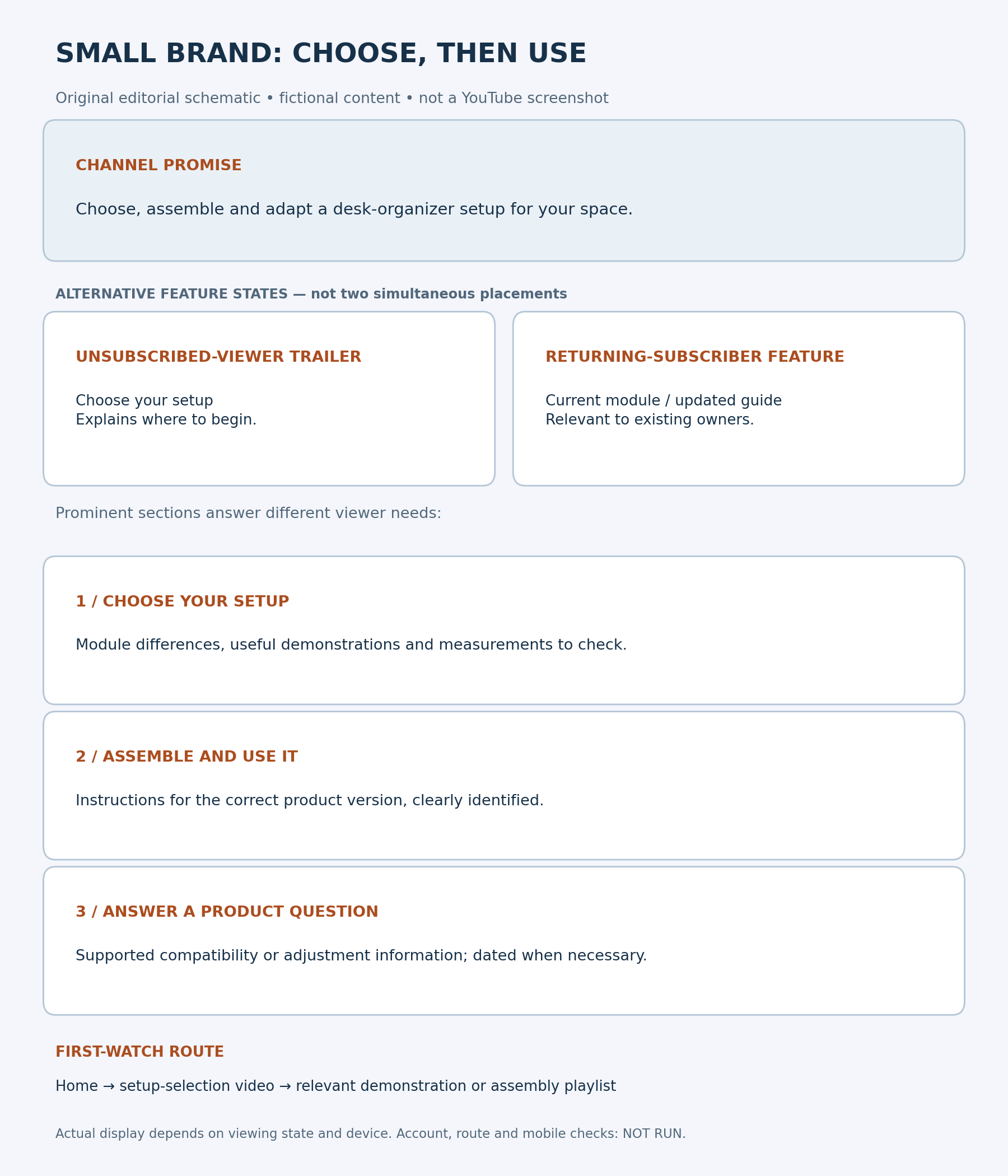
The small-brand concept separates three tasks:
- Choose your setup: product fit, module differences and measurements to check.
- Assemble and use it: instructions for the correct product version.
- Answer a product question: maintenance, compatibility or adjustment explanations the channel can actually support.
A prospective buyer should not need to search through launch events to find a relevant demonstration. An existing owner should not have to replay a sales introduction to reach assembly instructions. Keep useful older guides visible when they still apply, and identify obsolete versions rather than silently presenting them as current.
Run the 15-check audit
Use pass, change, not applicable or not checked. “Not checked” is the correct result when account access or a device test is unavailable; it should not be silently treated as a pass.
| Check | What to inspect | Evidence to record |
|---|---|---|
| 1. Promise | Audience, task and video style are understandable | One sentence and conflicting content, if any |
| 2. Home tab | Intended Home tab is enabled and public layout is visible | Setting and actual public view |
| 3. Trailer | Unsubscribed-viewer introduction fits the promise | Selected video ID and reason |
| 4. Returning feature | Spotlight offers a useful current continuation | Selected ID, purpose and review date |
| 5. Display state | Watched/subscription state explains what appears | Actual viewing context |
| 6. First lesson | A visitor can identify an appropriate starting video | Chosen video and observed hesitation |
| 7. Section purposes | Each prominent row answers a distinct need | Keep, combine or move decision |
| 8. Available inventory | Selected videos/playlists open and are current | Destination and version check |
| 9. Personalization | “For you,” if used, is treated as variable | Settings and observed context |
| 10. Identity and crop | Banner/avatar remain recognizable | Desktop and mobile observations |
| 11. Desktop task | An unfamiliar visitor can choose a useful first watch | Task, selected destination and obstruction |
| 12. Mobile task | The same task works in the tested mobile context | App/browser, device and result |
| 13. Returning task | Existing viewer finds the current continuation | State and selected route |
| 14. Next watch | The entry video offers a relevant continuation | Actual destination and interaction |
| 15. Review record | Changes, evidence and limitations are documented | Owner, dates, metrics and next action |
Make corrections by impact. A wrong or unavailable destination comes before a decorative change. A misleading beginner label comes before fine-tuning the order of two already useful specialist playlists.
Test desktop and mobile with a real visitor task
Save a dated record of the current layout before changing it. Then ask someone unfamiliar with the channel to complete a task without coaching: “Find the first lesson for building a basic project tracker.” Observe what they choose and ask why. A few such observations can reveal confusing labels, but they do not establish a population-wide conversion rate.
For the brand example, use two tasks: “Find out which setup fits your space” and “Find assembly instructions for this version.” If both testers choose the same promotional video because the labels are unclear, fix the route rather than blaming the viewer.
Repeat the relevant task on desktop and in the actual mobile app or browser used by your audience. Record each context separately. Check title truncation, banner crop, visible section order and the destination opened. Do not mark mobile as tested because a desktop browser window was made narrower.
Keep personalization in mind. A signed-in account may receive a different “For you” selection, while watched-state behavior affects the feature area. Capture what you observed without claiming that one screenshot represents every visitor.
Connect the first watch to an appropriate next step
The homepage's job continues after the first click. A beginner entry lesson should point to the next necessary lesson or a useful playlist. A product selection video should make it easy to find the relevant demonstration or setup instructions.
Where eligible, use an end screen with a specific continuation. YouTube documents end screens in the last 5–20 seconds of videos at least 25 seconds long, with restrictions including Made for Kids content and mobile web. Viewers can also hide them. See end-screen availability and setup.
Plan spoken and visual instructions around the actual element. “Build the weekly review next” should lead to that lesson, not whichever unrelated upload happens to be newest. Keep a clearly named playlist route available on the channel as well, because the end-screen element is not visible in every viewing context.
Test the next destination and check its opening. A correct link that leads to an unexplained advanced lesson can still break a beginner sequence.
Review evidence without claiming the homepage caused every change
Use a dated change log and consistent metric definitions. YouTube's Audience guide defines monthly audience as unique viewers over a rolling 28-day period; it is not a count of channel-homepage visitors. The new, casual and regular viewer guidance also distinguishes viewing behavior from subscription totals. A subscriber count is not a direct measure of how many subscribers are actively watching.
For relevant videos, inspect available traffic sources and engagement. YouTube defines Channel pages as traffic from your channel or other channels in its content-performance guide. That category does not isolate clicks on your own Home tab.
Suppose a fictional comparison shows Channel pages views rising from 500 to 640 across equal-length periods. The increase is 140 views, or 28%. You cannot call it a 28% homepage-conversion improvement: you do not have a matching count of homepage visits, the source category includes other channel pages, and new uploads or promotion may also have changed.
Use direct task observations to judge clarity, video reports to inspect the selected route, and audience trends as broader context. Record what else changed during the period. If the route is now understandable but data is limited, keep the useful correction and continue observing; do not manufacture a numerical win.
Download the audit pack
The 15-check CSV is ready for dated observations and priorities. The planning worksheet contains both fictional promises, introductory scripts, section plans, visitor tasks and a change log. The two schematics show editorial hierarchy and alternative visitor states; no live channel, mobile layout or account setting has been tested.
After fixing the first-watch route, compare any planned promotion with the exact destination and content requirements in the YouTube service guide. Decide whether the task concerns a channel, an individual video or another supported format. A service listing does not guarantee subscriptions, recommendation exposure or a measurable homepage effect.
