Spotify Canvas Checklist: From Creative Idea to a Valid Upload
Build a Spotify Canvas around one clear visual idea, then check the exported file and the actual mobile display separately. The current published requirements are a 3–8-second vertical 9:16 loop, 720–1080 pixels tall, supplied as MP4 or JPG. A technically compatible file still needs a clean loop, readable composition, suitable content and a verified upload. Source: current Canvas guidelines.
Download the original three-storyboard planning sheet, editable timing plans and export and upload checklist. The concepts and their timing are explained below. The diagrams are original teaching illustrations, not Spotify screenshots or finished video files. No account upload or audience-performance test was performed for this article. Documentation was checked on 25 November 2026.
1. Read the specification literally before editing
| Property | Current published requirement | Practical check |
|---|---|---|
| Video duration | 3–8 seconds | Inspect the exported duration, including any trailing frame |
| Shape | Vertical 9:16 | Check actual pixel dimensions, not only the preview orientation |
| Height | 720–1080 pixels tall | Do not confuse height with width |
| File type | MP4 or JPG | Export the required type; renaming an extension is not conversion |
Spotify repeats those requirements in its upload-error help and warns that a slightly incorrect duration or size can cause failure. Use the current requirements and the file’s measured properties, rather than assuming that a familiar social-video preset is suitable. Source: file checks for upload errors.
The height wording matters. A 1080 × 1920 file has the correct 9:16 shape but is 1920 pixels tall, outside the published range above. As a mathematically compatible example, 576 × 1024 is exactly 9:16 and 1024 pixels tall. That is an example derived from the requirements, not a guarantee that every export using those dimensions will upload successfully.
For a motion concept, use an MP4 and choose a duration comfortably inside the documented interval, such as six seconds. The guidance also accepts JPG; a still-image file has no timed motion sequence, so the storyboard timing examples here concern video. Check the selected upload flow rather than pretending an image has a video-duration field.
Do not add a made-up maximum file size, mandatory frame rate or universal codec setting to the checklist. The opened specification pages do not state those as current requirements. Keep your editor’s export details with the file so an error can be investigated, and use any specific requirement the actual upload interface reports.
2. Choose one visual idea that belongs to the song
Start with a short creative sentence: “A small orbit that never quite stops,” “A room settling after a conversation,” or “The same shape in three imagined spaces.” This gives the designer a subject, a movement and a mood. It is more useful than asking for a generic visual that looks expensive.
CD Baby’s release-planning guide recommends building a coherent visual world around a recording’s themes and emotional tone. Apply that idea to the Canvas: choose a shape, texture or colour relationship that can also sit comfortably beside the cover art and other release materials. The Canvas should feel intentional even when viewed without the rest of the campaign. Source: visual identity and release preparation.
Write four decisions before production: the focal subject, the motion, the loop return and the element you will deliberately leave out. For example, excluding lyric performance can let an abstract movement work at any point in the song. Excluding a dense title card can keep attention on the image rather than text that must be read in a few seconds.
Spotify recommends avoiding talking, singing or rapping footage because the short loop will not synchronise with the lyrics. It also advises against rapid cuts and intense flashing, and notes that phone screens can crop the edges. Treat those as constraints in the storyboard, before anyone spends time polishing a difficult shot. Source: creative and mobile-viewing guidance.
Use material you created or have permission to adapt and publish for this purpose. Keep the source file, creator, permission scope and approval together. Owning the audio does not by itself establish permission to reuse every shot, performer, artwork or stock element in an accompanying music video.
3. Storyboard three different loop approaches
The following concepts are original, fictional production briefs. The supplied sheet uses simple geometric drawings to show framing and timing. They are starting points for authorised artwork or footage, not claims about a real artist, release or tested Spotify result.
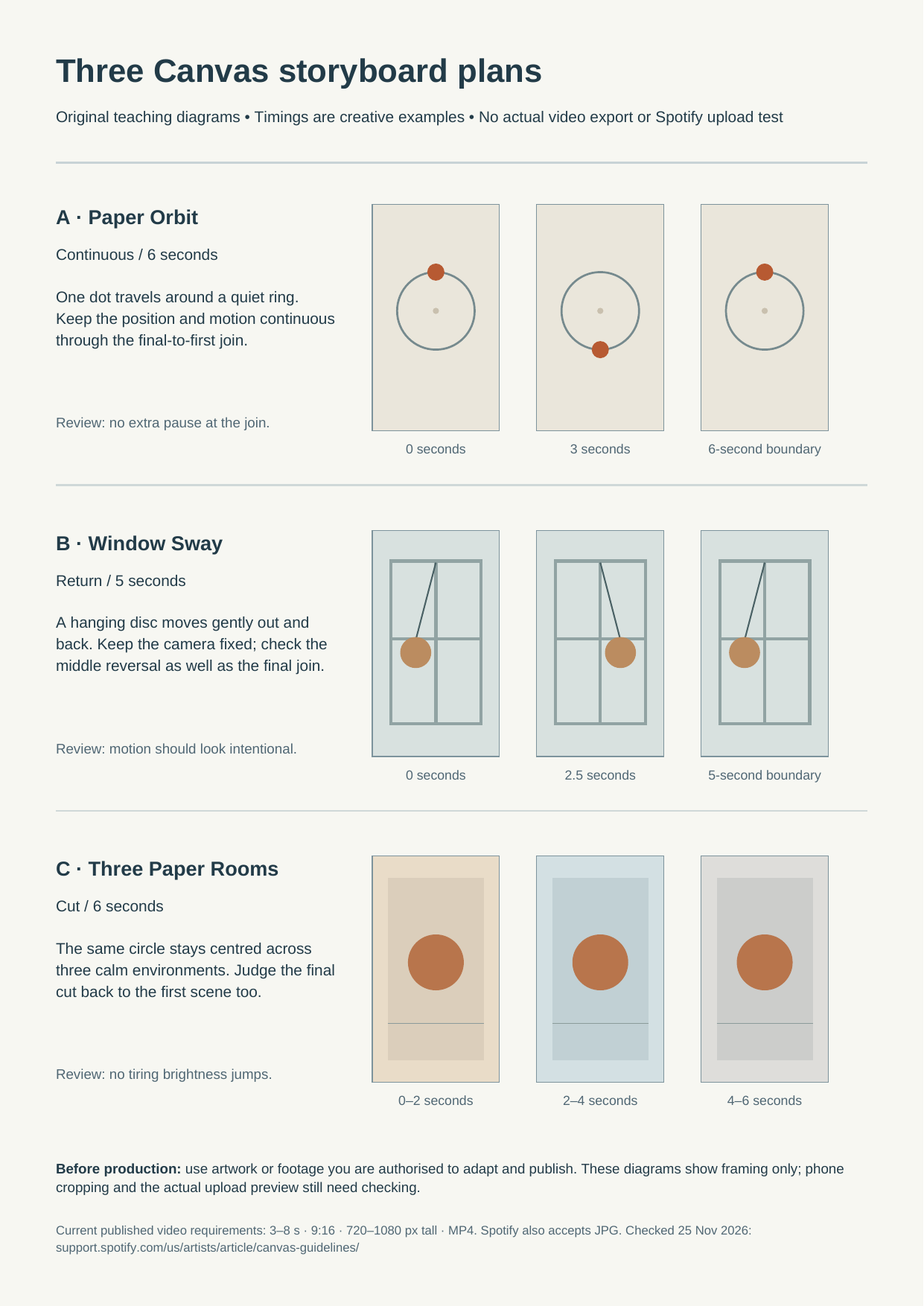
Concept A — Paper Orbit: a continuous six-second loop
Visual idea: a small warm-coloured dot travels around a hand-drawn-looking circle on a quiet paper background. The centre stays fixed and the surrounding space remains uncluttered. This could suit an electronic or instrumental recording whose identity uses repeated shapes, but the genre is a creative suggestion, not a targeting rule.
| Time | Picture and movement | Loop decision |
|---|---|---|
| 0 seconds | Dot begins above the centre of the ring | Save the starting position and direction |
| 3 seconds | Dot reaches the opposite side after a smooth half orbit | Keep speed and background stable |
| 6-second boundary | Dot returns to its start as the next loop begins | Match position and motion across the join; avoid an extra pause |
Create the ring and dot yourself, or animate authorised artwork. Keep the motion smooth through the boundary rather than stopping on a duplicated final frame. Review at least three consecutive loops: a join that seems acceptable once may become an obvious rhythmic hitch after repeated playback.
Concept B — Window Sway: a five-second return movement
Visual idea: a simple hanging disc moves gently from one side of a quiet window frame to the other and back. Use a fixed camera or an original drawn scene. The motion can suggest an acoustic or intimate song without needing an actor to perform a particular lyric.
| Time | Picture and movement | Loop decision |
|---|---|---|
| 0 seconds | Disc rests near the left side of its short arc | Leave room around the moving subject |
| 2.5 seconds | Disc reaches the right side | Reverse smoothly, with a gentle turn |
| 5-second boundary | Disc returns to the left position | Check both the middle reversal and final join |
A return movement is easiest to judge when the scene does not contain irreversible action such as falling liquid or visible speech. If you reverse footage, inspect the result for physical movement that looks accidentally wrong. A deliberately stylised reversal can be part of the idea; an unnoticed backwards action can distract from it.
Concept C — Three Paper Rooms: a six-second cut loop
Visual idea: the same circular subject stays in the same screen position while three restrained paper-colour environments change around it. The edit is visible and intentional. The concept could support a rhythm-led release or a song about different places without requiring a rapid montage.
| Time | Picture and movement | Loop decision |
|---|---|---|
| 0–2 seconds | Warm paper room with the circle centred | Establish a calm first composition |
| 2–4 seconds | Muted blue room; same circle size and position | Change the environment without a large brightness jump |
| 4–6 seconds | Soft grey room, then return to the warm room | Judge the final-to-first cut as part of the sequence |
Use your own photographed textures or original drawn backgrounds. Keep the changes moderate enough to assess comfortably on a phone. These two-second sections are a design choice for the example, not an official safe-cut frequency or accessibility certification. If the repeated cuts feel tiring, reduce contrast or choose a continuous concept instead.
The three approaches solve different creative problems. A continuous loop depends on a convincing boundary, the return loop depends on believable reversal, and the cut loop depends on the rhythm and consistency of its edits. Choose one because it serves the image and song, not because a particular loop type promises more streams.
4. Review the phone composition and content
Keep the important subject away from vulnerable edges and inspect it in the actual preview. Do not invent one universal safe-area percentage for every device. A central composition is a useful starting choice, but the real check is whether the subject and any necessary text remain clear in the viewing context.
Watch the export at a realistic phone size, then repeat it several times. Look for edge cropping, a subject covered by interface elements, an accidental black frame, a sudden exposure change and movement that becomes uncomfortable when repeated. Ask a reviewer who did not edit the clip to describe what they notice first.
Spotify’s content policy says Canvas should support the artistic message and should not be overly promotional. It restricts directing listeners to websites or ticket sellers and promoting unrelated material, brands or social follows. If text is used, keep it relevant to the track and subordinate to the artwork. Review the current explicit-content guidance where it applies. Source: Canvas content policy.
A short music-video excerpt can be a source if its use is authorised, but it still needs to function as a complete repeating composition. Choose a shot that can stand on its own, remove promotional overlays and check that its movement does not depend on synchronising a mouth or action to a particular line. A crop and a shorter export are not automatically a finished Canvas.
5. Validate the actual export and preserve a clear handoff
The production checklist separates creative approval from file validation. A reviewer can approve the concept while the exported file remains wrong, and an editor can export the right dimensions while using the wrong version. Keep both decisions visible.
- Identify the exact track and version the Canvas is intended for.
- Record the storyboard, source files, permission evidence and creative approver.
- Export the chosen file, then inspect its actual type, dimensions and duration.
- Watch the exported file itself at phone size and across repeated loops.
- Record any defects, fix them in a new version and retain the approved export.
- Give the uploader the exact filename, track link, approval record and checklist status.
Use a filename such as release_canvas_orbit_v03.mp4 and record its properties rather than relying on the version name. In the fictional Orbit handoff, the intended output is a six-second MP4 at 576 × 1024. The editor would still need to inspect the produced file and the uploader’s preview; this article does not supply or certify an actual video export.
The editable checklist contains eighteen checks covering account access, track version, source permissions, concept, timing, ratio, height, file type, repeated playback, crop, motion comfort, text, policy, export identity, upload response, live display and change history. Every status starts as “Not checked,” so the file cannot be mistaken for a completed release approval.
Separate the master project from the delivery file. Keep an editable source for future changes, but make the upload handoff point to one clearly approved export. If the file is modified after approval, update the version and repeat the affected checks; do not quietly replace the file under an unchanged approval note.
6. Upload through the authorised artist account
Spotify currently lists Canvas access for the first main artist on a track or a main artist on both the track and release, with an Admin or Editor role. Canvas can also be added to upcoming releases. Confirm the intended team and track version before using the controls. Source: Canvas access.
On the web, the current documented path is Spotify for Artists → Music → select the track → Add Canvas. In the Spotify for Artists mobile app, open Music, choose the track and use its Canvas control. Follow the preview and confirmation offered by the current interface and save the result in the handoff record. Source: web and mobile upload paths.
If upload fails, first inspect the exported properties and the exact error message. Spotify’s troubleshooting page suggests checking the specification and trying the Spotify for Artists mobile app, then contacting support if the problem continues. Change one relevant variable at a time so you can tell what helped; a different filename alone does not repair an invalid export. Source: upload troubleshooting.
An accepted upload and a visible Canvas are separate checks. Spotify says Canvas plays in its listener mobile app, and display depends on settings, supported availability and the correct track version. Its current instructions include Data Saver and the Canvas toggle under Content and display. Test the intended version in a suitable listening context before reporting the handoff complete. Source: Canvas display checks.
This workflow is based on current public instructions, not a signed-in test. Your final record should say what actually happened: file validated, upload accepted, display checked, or a specific unresolved issue. Do not mark every row passed merely because the document’s requirements were read.
7. Keep a version history without claiming automatic lift
Record the old and new filenames, the reason for the change, the publication time, the track version and the person who checked the mobile display. Note concurrent release activity so a later review does not attribute every change in listening to the visual alone.
Spotify counts a Canvas view when someone opens Now Playing and sees it, with at most one Canvas view per stream; the view does not depend on listening for 30 seconds. As a result, Canvas views can exceed the reported stream count. Its statistics use UTC. Treat Canvas views as their own defined measure, not a loop-replay counter or a conversion rate calculated from incompatible totals. Source: Canvas view counting.
A useful first review can simply establish that the correct visual displays and no obvious loop or crop problem remains. A performance review needs a separate question, a defined period and relevant evidence. Comparing two calendar periods with different promotion, audience or release age does not isolate the effect of changing the Canvas.
Keep the wider artist presentation coherent: Spotify for Artists also supports profile images, bio, Artist Pick and other profile elements. The Canvas handoff can be part of that release preparation without requiring every surface to use identical artwork. Source: artist-profile elements.
Before starting a separate campaign, review the Spotify promotion options and the broader Spotify promotion guide against the actual campaign objective. A prepared Canvas improves the completeness of the visual presentation; it does not guarantee recommendations, playlist selection, additional streams or the outcome of a catalogue service.
