Spotify Artist Profile Audit: What a New Listener Should See
Open the exact link you plan to promote and follow it as a listener. Can you identify the artist, find the intended release and understand what to play next? Start with that five-minute first visit, then fix the specific obstacles it reveals. The visit can be brief; correcting missing music, permissions or artwork may take longer.
This guide includes an original annotated profile map and printable checklist and an editable audit CSV. The map is a fictional teaching schematic, not a live Spotify screenshot or an exact reproduction of the current interface. It uses original geometric artwork, no borrowed photographs, no verification badge and no invented audience statistics.
Profile feature details were checked on 25 November 2026. You can also download the standalone teaching map for a team discussion.
1. Start with the destination a new listener will receive
Use the actual campaign link, not a profile you happen to have open in an editing session. Record whether the destination is an artist profile, track, album or playlist. If the campaign promises a particular song, check whether the route makes that song easy to reach and whether the selected service requires that exact type of link.
Ask a reviewer who is unfamiliar with the release to perform three tasks: identify the artist, locate the music mentioned in the campaign and choose the next listening step. Watch where they hesitate. The objective is to find confusing labels or missing context, not to grade their musical taste or force a particular personal response.
| First-visit question | What to observe | Useful action |
|---|---|---|
| Am I on the right artist page? | Name, imagery and the music match the campaign context | Resolve an incorrect destination or identity mismatch before sending more visitors |
| What should I listen to now? | The intended release or chosen Artist Pick provides a clear route | Select the right featured item and explain the current reason for it |
| What can I do after that? | The listener can continue into the catalogue or a relevant official channel | Keep the next route understandable and test the actual endpoint |
Spotify for Artists provides controls for images, biography, Artist Pick, artist playlists and other profile elements. Start with the elements that support this visit rather than adding every available feature. Source: managing an artist profile.
Bandzoogle’s music-marketing guide connects consistent artist identity with a focused next step across discovery channels. Apply that principle here by making the campaign’s promise and the Spotify destination tell the same story. It is an editorial readiness check, not evidence that a profile edit will increase conversions. Source: online music marketing guidance.
2. Review the images in the places they actually appear
Check recognition before decoration. An avatar that looks effective in a large design file may lose its subject when reduced or cropped. Review the real listener view and keep the artist recognisable at that size. Use images you have the right to publish, and record the approved asset version so that the team does not accidentally restore an old campaign image.
Spotify places the avatar at the top of the mobile artist profile and beside the name in search. The header is used on desktop/web profiles and in the smart-TV Now Playing view; gallery images appear in About. These are different surfaces, so a single crop check is insufficient. Source: artist image placements.
Match the visual identity to the current release without turning every image into a poster filled with small print. A consistent palette or photography treatment can connect the campaign and profile while allowing the image to work at its actual size. If a date or release claim is embedded in the artwork, include it in the review schedule.
Have the authorised editor use the supported update route. Spotify’s current help says header images cannot be updated in a mobile browser or the Spotify for Artists mobile app. It also says the search image can take up to 72 hours to update. Record where you checked the change so a cached search image is not mistaken for a failed profile save. Source: image editing and update timing.
3. Give Artist Pick a current purpose
Choose the item because it supports the current listening task. For a release campaign, that might be the new single or album. For a catalogue introduction, it might be a carefully ordered playlist. A concert or merchandise item may fit a different objective. Do not leave the Pick unchanged simply because it still exists.
Artist Pick can feature music, playlists, concerts, merch and podcasts, with podcasts added through the web. Admins and Editors can set it and add an image and short message. The current help says a Pick remains for 180 days unless changed earlier; concerts and merch have additional end conditions, and music-video Picks depend on regional video availability. Source: Artist Pick options and duration.
| Weak teaching example | Clearer teaching example | Why the change is useful |
|---|---|---|
| New music!!! | Start with our new single, Windowlight. | Names the item and gives a direct listening route |
| Listen to everything | New here? Begin with the Start here playlist. | Explains what the selection is for |
| Tour soon | A current show selection with a verified date and ticket destination | Makes the next step specific, if the show actually exists and is relevant |
These are copy examples, not actual releases or event claims. Choose the real object in the editor and reopen it from the listener-facing Pick. A readable message cannot repair a link to the wrong version, an unavailable item or a playlist that no longer matches the description.
Set a review date when you select the Pick. It may need changing well before its maximum display period: a release has moved from upcoming to live, a show has passed or the campaign’s next step has changed. Assign an owner so that the reminder leads to a review instead of becoming a forgotten note.
Use the controls you actually have. Spotify’s profile overview says the Popular track list is automatically ranked and cannot be manually changed. If you want to guide a first listen, use an editable feature such as Artist Pick or an artist playlist instead of promising to reorder Popular. Source: Spotify’s profile overview.
4. Make the biography accurate and useful now
Read the first sentence without assuming the listener has seen your social accounts. It should give them enough context to understand the project: a specific description of the music, the people involved or the current release. Follow with details that are accurate and useful. A series of unsupported superlatives does not help a listener choose a first track.
Spotify’s biography field supports up to 1,500 characters, Spotify links and @tags to artists, albums, playlists and tracks. Use those connections selectively and open them after saving. A tag that resolves to a different artist with a similar name undermines an otherwise accurate introduction. Source: adding and editing an artist biography.
Original fictional bio example: “Example Artist makes spare electronic songs built around close vocals and shifting synth patterns. The new single, Windowlight, pairs a dry drum pulse with a quiet refrain. Start with Windowlight, then explore the Start here playlist for a short introduction to the project.”
That example uses an invented project and release to show structure. An actual artist should replace the description with their own accurate sound, credits and current work, and select the real Spotify objects for any tags. No fabricated award, collaboration, press quote or listener count is needed to make the introduction specific.
- Check names, roles and credits against information the artist has approved.
- Remove wording such as “coming next month” once it has expired; use a precise current reference where it helps.
- Make sure the biography and Artist Pick do not point a listener toward different campaigns without explanation.
- Review every link or tag in the saved listener-facing version, not just the text in the editor.
5. Make playlists and social links deliberate
An artist playlist should explain its own purpose. “Start here” suggests an introduction; “songs behind the album” suggests influences and context; “live set” suggests a different listening sequence. Choose a title and description that match the actual tracks. Then open the playlist and inspect the order and content instead of relying on its cover image.
Spotify allows an artist profile to feature playlists and lets Admins and Editors rearrange or remove the featured playlist selections. If you create your own playlist, Spotify’s help describes creating it in your personal Spotify account and adding it to the artist profile. Keep responsibility for that source playlist clear so later edits do not unexpectedly change the listener route. Source: artist playlists.
For social links, use the current supported fields. Spotify’s help lists Instagram, Facebook, X, TikTok, Wikipedia and WhatsApp. WhatsApp support is for channels, not chats. These destinations appear in About; check the real account or channel after saving. Do not assume that any arbitrary website URL fits the same field. Source: supported social links.
There is no need to fill every field with a dormant destination. Link to the channels you actually maintain and want a listener to visit. Check for a renamed account, an old management page, a redirect to an unrelated profile or a link that asks for a different next step than the campaign promised.
6. Use the annotated teaching map
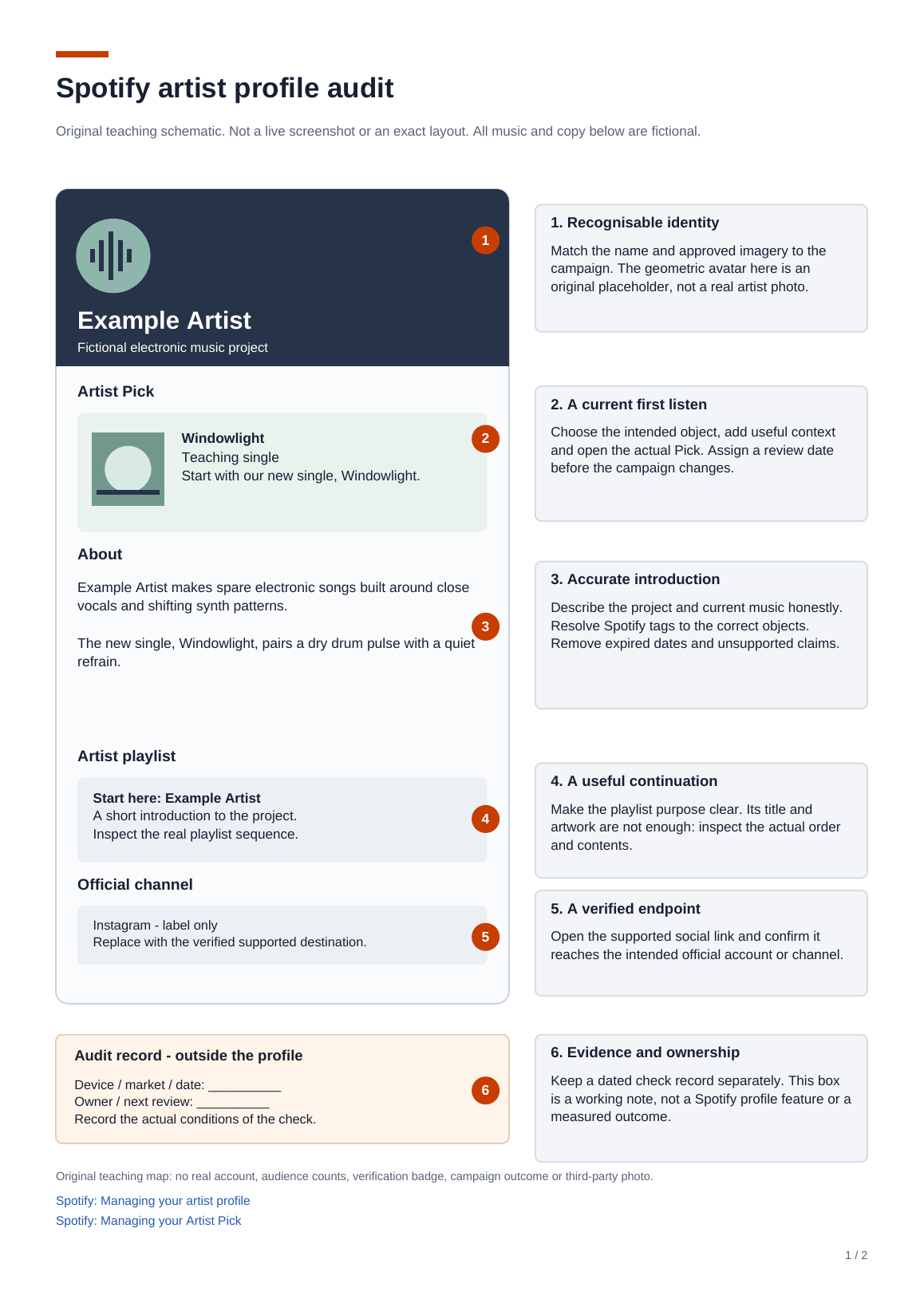
The downloadable map groups the editable elements by their job. Its labels correspond to the six checks below. The placement is deliberately schematic: it is not a claim that every device, account or country shows the same screen. The audit record is outside the profile, because it belongs in your working files.
| Label | Element | What the original mockup shows | What to verify on the real profile |
|---|---|---|---|
| 1 | Identity | An original geometric avatar and the label Example Artist | Check that the campaign and destination clearly identify the same project. |
| 2 | Artist Pick | Windowlight, with the message “Start with our new single, Windowlight.” | Give the chosen item a current reason and test its actual destination. |
| 3 | Biography | A short fictional description of the sound and current release | Use accurate context and meaningful Spotify tags; remove expired promises. |
| 4 | Artist playlist | Start here: Example Artist | Make its purpose and sequence clear, then inspect what the playlist actually contains. |
| 5 | Social destination | A labelled official Instagram destination, without a fabricated URL | Check the supported field and the real endpoint you intend to use. |
| 6 | Audit record | Device, market, date, owner and next review outside the profile map | Record the conditions of your check; this is not an editable Spotify profile module. |
In this example, the message, biography and playlist all support the same first-listen route. That consistency is the design decision being demonstrated. It is not a measured conversion improvement, a claim about Spotify ranking or an instruction to copy a fictional identity into a real profile.
7. Test mobile, desktop and the intended market
Repeat the route on a phone and in the relevant desktop or web experience. Use the same campaign destination, note the device and date, and record what is actually visible. A successful test means the promised destination and next action work under those conditions; it does not establish that every listener worldwide sees the same view.
Check the relevant recording or version, not only the release artwork. If the music is missing, Spotify directs artists to their label or distributor for help. Its provider tools expose status, start/end dates and territory rights to the labels and distributors with the appropriate access. An artist team should request confirmation rather than assume it can correct territory rights by editing a profile. Source: unavailable tracks. Source: music status and territory information.
For a market-specific plan, obtain a legitimate listener check in the relevant market where possible and record its limits. If you only checked your own device and location, write that. A music-video Pick is an additional reason to check regional availability; a playable audio release does not establish that the video feature is available there.
If there is an active campaign, keep its approved destination and requirements in view while resolving a mismatch. Coordinate a required destination change through the relevant campaign or order process. A profile audit should produce a clear correction record, not an unexplained substitution of the link already in use.
8. Complete the audit checklist and keep a change record
Use Not checked, Pass, Needs work or Not available for each item. “Not available” is useful for a feature that does not apply to the account; explain the reason instead of silently counting it as a pass. The CSV includes fields for evidence, action, owner and review date.
| Check | Pass condition |
|---|---|
| Identity and destination | Correct artist; exact destination recorded. |
| Avatar and header | Recognisable, current imagery; important content is not cropped out. |
| Current release | The campaign promise matches a usable release destination. |
| Artist Pick destination | The selected item is intentional and the link resolves correctly. |
| Pick context and review | Current reason to choose the item; review date and owner assigned. |
| Biography | Accurate current context; tags lead to the intended objects. |
| Artist playlist | Clear purpose and usable listening sequence, if a playlist is featured. |
| Supported social links | Supported destination is current and belongs to the project. |
| Mobile listener path | Artist and release are identifiable; the next step is usable. |
| Desktop or web path | No material contradiction in imagery, message or destination. |
| Intended market | Availability confirmed for the plan, or an unresolved market issue is assigned. |
| Change record | A dated audit record exists; incomplete checks remain visible. |
Prioritise a wrong destination, missing intended release or broken featured link before cosmetic refinements. For each change, retain a small record: field changed, previous state, new state, date, owner, screenshot or link evidence, and the next check. Reopen the listener view after saving and record any surface still awaiting an update.
Compare later observations carefully. If you change the Pick, biography, imagery and promotion at the same time as a new release, a change in listening cannot be attributed to one profile edit from a simple before/after comparison. Keep the audit as evidence that the destination was prepared; use a separate campaign measurement plan for audience outcomes.
You do not need a numerical “profile score” to act on a broken route. A concrete finding such as “Artist Pick opens last year’s release while the campaign names Windowlight” has an obvious correction and a checkable completion condition. That is more useful than assigning arbitrary weights to every field.
Before directing traffic, use the wider Spotify promotion guide to place the profile in the release plan. Then check the current destination type and link requirements in the Spotify music promotion guide. Choose a destination that supports the agreed next step, and preserve the audit record so the team can review it again when the release, Pick or campaign changes.
