Spotify Ad Rejected? Build a Correction Plan from the Review Notice
When Spotify rejects an ad or an edit, begin with the exact review notice and the exact version that was submitted. A new mix, a new destination and a larger budget are different changes. Making all of them at once can leave the original problem unresolved and make the next review harder to understand.
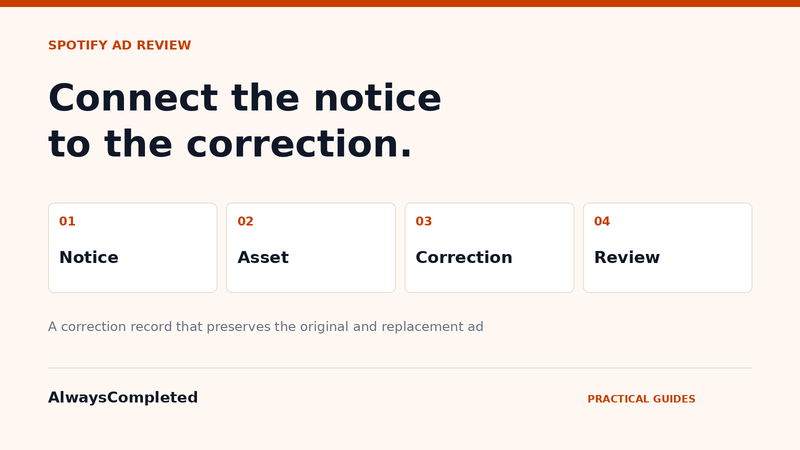
Build a correction record before producing another file. It should connect the stated issue to an affected element, supporting evidence, one proposed correction and an authorized approver. The six notices in the downloadable example are fictional teaching notices, not quotations from real Spotify decisions. No ad was submitted for this guide. Official public help was checked on 26 November 2026.
Download the six-case correction log and support-request template
Preserve the notice and the submitted version
Spotify's edit-rejection help says the reason is sent to the business email. Save that message with the relevant account, campaign, ad-set and ad references. Read the wording before deciding that the problem must be the music.
Keep the original audio or video, companion creative, copy, button choice and destination together. Record the submission time and the status you can currently see. A screenshot or export is useful when it identifies the object and observation time; an unlabeled crop may be impossible to match to a later discussion.
Separate three statements in your notes:
- What the notice says. Preserve its exact wording in the private working record.
- What you can observe. For example, the submitted file's measured duration or the destination reached in a documented test.
- What you think needs changing. Treat this as a proposed correction until the evidence supports it.
An inference such as “perhaps the title was unclear” is useful for investigation. It is not the same as a stated rejection reason. Keeping that distinction prevents a team from polishing the wrong element repeatedly.
Identify the affected element
Start with the smallest part of the package that explains the notice: a file, a claim, an identity field, a destination, a permission or the current review state. Then check related items for consistency. A corrected artist name in the text does not help if the voiceover still names a different project.
| Fictional notice category | First evidence to inspect | Focused next step |
|---|---|---|
| Audio length does not fit the selected placement | Actual submitted export and selected format | Measure that file and produce a compliant version |
| Advertiser identity is unclear | Name field, spoken identity and artwork | Make the authorized identity consistent |
| An endorsement is not established | Exact claim and any permission supporting it | Remove the unsupported claim or resolve evidence |
| Visual resembles a platform control | Submitted image and how its elements are presented | Replace the misleading design |
| Destination does not match the invitation | Submitted URL, redirects and final page | Restore the approved, matching route |
| Edit is unavailable while review is pending | Current status and the object being edited | Wait for the review result or ask a focused status question |
These categories organize the investigation. They are not a diagnostic system that can determine why a real ad was rejected without its notice.
Check policy and specification separately
Spotify's advertising policy addresses clear advertiser identity, misleading claims, rights, unauthorized implied endorsements and visuals that mimic Spotify's interface. Use the relevant section to understand the cited issue. Do not hide a prohibited claim in audio or change a redirect merely to conceal the destination from review.
A technical correction is different from resolving a policy question. If a file is too long for its actual placement, measure and correct the export. If a claim has no supporting evidence, removing a second from the file does not make the claim accurate. Keep each issue attached to its own evidence and approver.
For audio, open the current placement specifications and check the chosen format. Standard music audio and a separately negotiated Direct exception should not be mixed in one checklist. A familiar limit from an older help article is not proof that the current order uses the exception.
Have the responsible person approve rights and identity questions. A designer can correct a layout, but may not be able to authorize an endorsement or a piece of music. If the team cannot establish a necessary permission, hold the affected asset until that question is resolved.
Check the destination with the invitation
Copy the exact URL submitted for review, rather than a newer link from a chat message. Open the route in an appropriate recipient context and note the final destination, access state and time. If redirects are used, make sure the approved route still leads to the intended material.
Compare the page with the spoken and visual invitation. A single-listening message should not quietly become a different offer after the click. An unavailable release, wrong version or unrelated landing page can also make a creative package internally inconsistent even when each individual file looks polished.
Record what the check established. One successful browser visit does not prove availability in every market or device. If the notice concerns a particular location or access condition, investigate that condition specifically rather than replacing it with an easier test.
Avoid changing the destination of a separately active campaign without coordinating with its owner. The correction record should identify which ad and which version are being revised. Keeping a stable record is especially useful when the same release appears in several campaigns.
Choose the correct review branch
The available action depends on status. Spotify's editing guide distinguishes campaign, ad-set and ad fields, says edits cannot be made while an item is under review, and does not permit changing a campaign objective through ordinary editing. Check the actual object before searching for a control that does not apply to it.
There is a specific branch for rejected creative edits. Spotify's current paused-ad guidance says a rejected creative element, including an image, audio/video or destination, requires a new or duplicated ad with the correction, rather than editing and resubmitting that same ad. It also says the rejected current ad does not serve until the issue is compliant.
This means the correction log needs both an old and a replacement ad reference when that branch applies. Preserve the relationship and the changed asset version. Creating the replacement is a documented correction route, not permission to resend prohibited content under a different name.
If the notice and the visible controls do not make the appropriate branch clear, ask Spotify Ads Manager support about that specific state. Do not repeatedly duplicate pending items or assume that an unavailable edit is a browser problem. Include the relevant object ID and notice so support can identify the situation.
Approve a focused revision
Write the proposed change in a sentence another person can verify. “Replace mix v02 with v03; shorten the opening while retaining the approved voiceover; remeasure the final file” is more useful than “fix audio.” Add the evidence showing why the new version addresses the problem.
Keep unrelated optimizations out of that correction unless they are separately authorized and necessary. A budget change, audience change or revised campaign objective introduces another decision. It should not be smuggled into a creative repair because the editor happens to be open.
Before submitting through the allowed route, review the package as a whole. Check that the approved identity, claim, file, companion image and destination agree. Record the approver and final version. A second person should be able to identify which material was actually sent.
The download includes a support-request form with space for the real notice, current status, original and replacement IDs, evidence and a precise question. It excludes passwords, recovery codes, full payment details and other information that does not help explain the review problem.
Keep the new result separate from the correction
After submission, record the new status and its observation time. “Submitted for review” does not mean accepted. If approved, record that observed outcome; if rejected again, preserve the new reason and compare it with the previous one. Do not erase the first notice or describe the revision as successful before a result exists.
Approval of an ad also does not establish audience response or the completion of another service. Delivery and campaign measurement belong in their own records. This log answers a narrower question: what was rejected, what changed and what happened in the next review?
For work bought through AlwaysCompleted, first check the advertising service's actual scope. If an existing order includes relevant creative work, contact technical support with its order ID and the evidence for the requested revision. Native Spotify account review is not automatically included in a catalogue service, and an AC order does not authorize someone to edit an unrelated advertising account.
Close the correction only when the recorded issue has a documented resolution or a clear decision to stop. That leaves the team with an understandable history instead of a folder of unexplained replacements.
