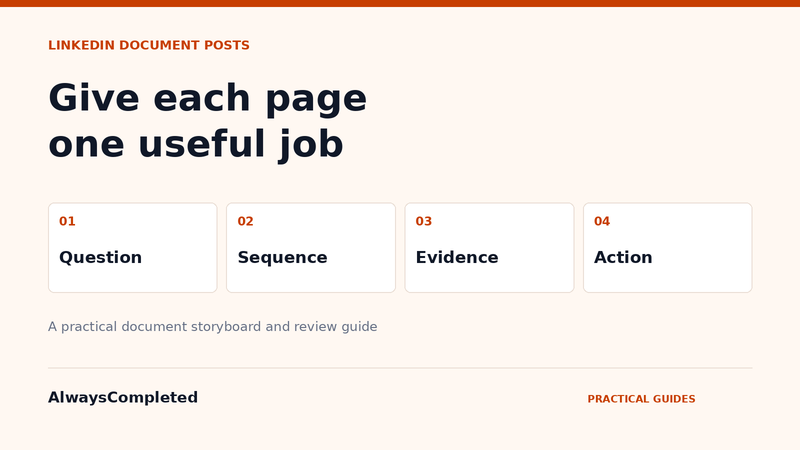
LinkedIn Document Posts: Turn One Useful Idea into a Clear PDF
A useful LinkedIn document post helps a reader complete one task through a short sequence of pages. Choose the task, write a clear promise, outline the pages and finish with something the reader can use. Then export and check the PDF before attaching it to a post.
For example, an agency could publish a seven-page guide to checking a client brief: introduce the problem, explain three checks, show an improved brief and provide a final checklist. That is a complete piece of content. It does not require squeezing an entire article into small type or withholding the useful answer until someone contacts you.
This guide includes that original example as a downloadable PDF and editable page text. All client details in the example are fictional. LinkedIn's public documentation was checked on November 25, 2026; no account publishing or campaign results are claimed.
Understand what “document carousel” means
People often call a multipage PDF post a “carousel” because readers move through its pages. Use document post when describing the upload workflow so it is clear which format you mean. LinkedIn's document-upload help covers documents shared from a profile, Group or Page.
| Format | What you are publishing | Important distinction |
|---|---|---|
| Organic document post | A document attached to an ordinary post | The subject of this guide; the reader can access the document without it becoming an advertising campaign |
| Carousel Ads | An advertising sequence of image cards | Cards can have their own links; campaign reporting is specific to that ad format |
| Document Ads | A sponsored document, with campaign options such as a Lead Gen Form | Document reading and download reporting belongs to the relevant advertising workflow |
LinkedIn describes Carousel Ads and Document Ads separately. Do not transfer a feature or reporting claim from either advertising page to a normal PDF post.
LinkedIn's Pages best-practice guide includes PDFs and PowerPoints among ways to share meaningful company content. That makes a document an available format, not a promise that it will outperform text, images or video for your audience.
1. Choose a task that benefits from several pages
A document works well when order helps understanding. The reader sees the problem, learns a method, watches it applied and leaves with a practical reference.
Useful tasks include preparing for a discovery meeting, comparing a small set of options, reviewing a draft before approval or following a short process. A single announcement may need only a normal post. A detailed reference manual may work better as a full web guide with a short document introducing one part of it.
Choose one reader and one action. “Marketing advice for businesses” is too broad to guide the page sequence. “Help an agency account lead identify missing decisions before creative production” gives every page a job.
Write a promise you can fulfill within the file. For this example:
Check whether a client brief names the outcome, boundaries and approval decision before the team starts production.
The promise is about a decision the reader can make. It does not claim that the checklist will eliminate revisions, guarantee approval or produce a particular commercial result.
2. Write a storyboard before designing the pages
Use the storyboard to decide what belongs on each page and what should be removed. If two pages make the same point, combine them. If one page tries to explain three separate decisions, divide or simplify it.
Here is the original seven-page plan used in the accompanying PDF. Seven pages is an editorial choice for this example, not a LinkedIn requirement or performance benchmark.
| Page | Job in the sequence | Main content | Layout direction |
|---|---|---|---|
| 1. Cover | Identify the reader's task | Check the client brief before creative work | A specific title and the three-check promise |
| 2. Problem | Explain why the task matters | A vague request leaves important decisions open | One short request and three missing questions |
| 3. Step 1 | Name the outcome | Connect an intended reader to a useful next action | One instruction, one example, one check question |
| 4. Step 2 | Set the boundaries | Deliverable, placement, inputs and exclusions | A compact list with a note about dates and review allowance |
| 5. Step 3 | Confirm the decision | Name the approver and the criteria for readiness | Short paragraphs and one memorable distinction |
| 6. Example | Show the method at work | Improve an unclear request; retain unresolved fields | Before, after and an explicit “still open” note |
| 7. Checklist | Give the reader a usable next step | Six checks to apply to an actual brief | A readable numbered list and a direct action |
The sequence should make sense without the post caption. Someone may download the document and read it later, away from the surrounding feed. Include enough context inside the file to identify the task, author and meaning of the example.
3. Copy and adapt the complete seven-page text
The text below is the substance of the sample PDF. The explanatory notes after each page are for the editor; they are not extra text to cram into the page.
Page 1: The promise
Before you start: check the client brief
Three checks for an agency team before creative work begins.
Name the outcome. Set the boundaries. Confirm the decision.
Original educational example. Use it to clarify work, not to score a client.
The cover states the task and the intended user. It avoids a headline such as “The Secret to Perfect Briefs,” which would promise more than this small tool can establish. The educational note also tells readers how to interpret the sample.
Page 2: The problem
A request is not yet a working brief
“Make us stand out.”
That sentence leaves three decisions open:
- What should the reader do?
- What exactly must be delivered?
- Who decides the work is ready?
Ask for the missing decisions before assigning production.
The request is deliberately incomplete. The page explains what is missing instead of labeling the client difficult or incompetent. That keeps the document useful in an actual working conversation.
Page 3: Step 1
Name the outcome
Write one sentence that connects a reader to a useful next action.
For operations leads, explain the three onboarding choices so they can request the option that fits.
Can the client identify the intended reader and action?
The example names an audience and a decision. It still needs approved facts about the three options; the wording is not permission to invent product details. In your adaptation, replace the audience and next action with something grounded in the client's actual brief.
Page 4: Step 2
Set the boundaries
- Deliverable: one seven-page PDF.
- Placement: company LinkedIn Page.
- Inputs: approved product facts and examples.
- Excluded: new research and extra language versions.
Add dates, owner and review allowance before estimating the work.
The boundaries make the work discussable. They are illustrative, not standard agency terms. A real project may need research, localization or more review rounds; the point is to record those requirements rather than silently assume them.
Page 5: Step 3
Confirm the decision
Name one person who combines feedback and approves the final version.
Ready means: facts checked, promised pages present, text readable and links tested.
If the brief changes: record the new scope, timing and decision owner.
A target date is not an approval.
The page separates a calendar target from a decision. This is a proposed working method, not a contract template. Adapt the approval process to the organization, especially if factual, brand or other reviewers have different responsibilities.
Page 6: A worked example
Turn a vague request into a usable brief
Before: “Create something about onboarding.”
After: “Make a seven-page PDF for operations leads comparing three onboarding choices. Use approved product notes. Mira combines feedback and approves.”
Still open: deadline and review allowance. Confirm both before scheduling.
Fictional example. No client result is claimed.
The “after” version is more useful, but it is not presented as complete. Keeping the unknowns visible teaches the reader to request missing information. It also avoids turning an invented example into a purported client success story.
Page 7: The checklist
Ready to brief the team?
- Reader and next action are clear.
- Deliverable and placement are named.
- Inputs and exclusions are agreed.
- Dates and review allowance are confirmed.
- One approver and ready criteria are named.
- Every unknown has an owner and a due date.
Next: use this checklist on one real brief. Resolve blockers before production.
This final page earns its place by helping the reader do something. A contact invitation can be appropriate elsewhere, but the last page should still fulfill the document's original promise. An unknown with an owner and a due date remains unresolved; do not treat that record alone as permission to start work that depends on the missing decision.
Download the seven-page client brief check PDF
Download the editable storyboard and complete page text
4. Make each page readable at the size people will use
Design for a small view before adding decoration. Put one main heading on each page, use short paragraphs and give the content enough space. If the words do not fit comfortably, revise the text before reducing the type size.
The example uses equal portrait pages in a 4:5 proportion, with dark text, light backgrounds and a consistent reading direction. That proportion is a design decision, not a mandatory LinkedIn size. A different layout can work if it remains readable and consistent.
For visual review, inspect the exported PDF at a narrow width, not only at full size on a large monitor. Our sample was rendered and checked page by page at 390-pixel and 320-pixel widths. This is a local readability check, not a claim that LinkedIn's actual feed preview has been tested. You still need to review the uploaded preview in the publishing account.
Use real, selectable text where possible. A page exported as one image may look correct while losing useful document structure. W3C's PDF techniques explain how reading order and heading tags help convey a document's organization. Also provide a meaningful document title and language setting.
The sample contains live text, title and English-language metadata, heading and list tags, and page bookmarks. Its extracted text and structure were checked. The editable text offers another way to read and adapt the material. These checks do not constitute a complete accessibility certification or a test with every screen reader.
5. Add context and sources where the reader needs them
A practical document can be concise without concealing where its claims come from. Distinguish your suggested method from a platform rule, external finding or client result.
For your own process, explain the assumption or decision. For an external statistic, give the source, date and relevant scope near the claim. For a genuine client example, obtain the necessary permission and show what was actually measured. A claim that needs a paragraph of qualifications may belong in a longer reference rather than on a crowded slide.
The sample uses original process advice and a fictional brief, so it does not borrow a performance statistic. Its educational label travels with the PDF. If you replace the example with a real project, revise that label and support the account with evidence; changing the company name is not enough.
Keep the caption useful too. A possible original caption for the sample is:
Before creative work starts, a brief needs a clear outcome, boundaries and approval decision. This seven-page example shows how to find the missing pieces and ends with a checklist you can use with your team. The client example is fictional. Which field most often needs clarification in your briefs?
The caption tells the reader what is inside and asks a relevant question. It does not require a comment or private message to obtain the answer already promised by the post.
6. Check the export before uploading
LinkedIn's current supported-media help lists PDF, DOC, DOCX, PPT and PPTX for documents, with a maximum of 100 MB and 300 pages. The accompanying sample is far smaller and has seven pages. Recheck the current help before preparing a file near a platform limit.
The upload guidance recommends PDF, consistent page sizes and secure hyperlinks. It says multilayer PDFs should be flattened or merged and that animations display as static content. Keep the editable original separately; after export, recheck that the resulting file still has the text and structure you intended.
Use this preflight sequence:
- Content: confirm the promise is fulfilled and every page has a distinct job.
- Claims: verify facts, permissions, examples and source notes.
- File: open the final export, check page count, file size and consistent page dimensions.
- Readability: inspect every page at a narrow width; look for clipping, crowded lines and tiny notes.
- Structure: check selectable text, reading order, headings, title and language.
- Destinations: test any links in the export and the surrounding post.
- Publication: confirm the intended profile or Page, document title, caption, audience and final preview.
For a desktop homepage upload, LinkedIn's documented route is Start a post → More → Add a document, followed by choosing the file and adding its title and post description. Treat the account preview as a separate final check. The local PDF render cannot show how your particular account's composer will process the file.
Can you replace the PDF after publishing?
LinkedIn's document FAQ says you can edit the title and description, but you cannot change the document inside an existing post. A revised document requires a new post; the FAQ also states that a post can contain only one document.
That makes a version check worthwhile. Give the final file an identifiable version in your working folder and confirm it is the one being uploaded. If a substantive error is found later, decide how to correct the public record and explain the correction. Do not assume editing the caption changes the downloaded file.
Download the export, publication and measurement worksheet
7. Measure the post without inventing a reading funnel
Decide what evidence would help you improve the next document. Useful observations might include a reader's specific question, a correction they needed, or an attributable visit to the next resource. These are different from proof that everyone reached the last page.
For a LinkedIn Page, the official content analytics definitions distinguish estimated impressions from estimated members reached. Page clicks include clicks on content, the company name or logo; repeated document clicks by one member count as one click. These clicks are not automatically downloads, external visits or inquiries.
The same help defines engagement rate using clicks, reactions, comments and shares relative to impressions. In a simplified fictional example, 80 clicks, 40 reactions, 10 comments and five reposts across 2,000 impressions give 135 ÷ 2,000 = 6.75%. The corresponding clicks-to-impressions calculation is 80 ÷ 2,000 = 4%. Neither calculation establishes completed reading or a qualified lead.
Use the actual definitions and reporting scope shown for your account. Record the post, date range and whether the figures are organic, paid or combined. If publishing from a personal profile, consult the definitions for that profile view instead of relabeling a Page report. The Page help also notes scope differences between boosted-post Page analytics and Campaign Manager.
Do not populate a “document completion” or “downloads” column merely because another report uses those labels. LinkedIn explicitly describes document-viewing percentage and download reporting for Document Ads. Verify which metrics your actual organic reporting view provides. If the required field is unavailable, record it as not available, with the source and date; do not replace it with clicks.
A commercial outcome needs its own evidence. Define what qualifies as an inquiry, record it through an appropriate process and distinguish an observed referral from an assumption. No website analytics, LinkedIn analytics or customer system has been accessed for this example, and the worksheet contains no fabricated results.
After the document is useful and the publishing route is ready, review the LinkedIn promotion page or publishing and profile service categories if those services fit the next task. Their scope is separate from LinkedIn's native document and advertising formats. Evaluate a service against the work it actually supplies, without treating interactions as guaranteed readers or customers.
Start by adapting the seven-page storyboard to one task your audience already faces. Keep the useful conclusion inside the document, inspect the export and decide what you can honestly learn from the response.
